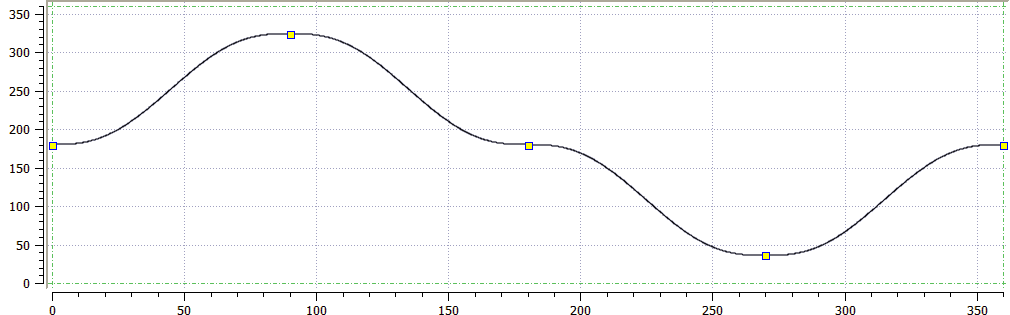
Figure 10-11: Cam Profile Graph
Points and endpoints of lines are displayed as yellow squares (  ) in the graph. The profile offset and amplitude specified in the cam profile editor (see "Create Cam Profiles") are displayed with a green dashed rectangle. The yellow squares are always contained within the green dashed rectangle (although calculated points can extend outside it).
You can modify the profile by moving point with the mouse as follows:
 indicating that the point can be selected)
In addition, when a point is selected, a slope line is drawn over the point. This line is dashed purple with two additional grips (  ) attached to it. The slope line can be used to change the velocity of the selected point.
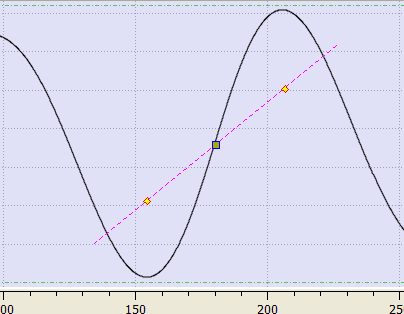
Figure 10-12: Cam Profile Graph - Slope Line
You can change the velocity of the selected point as follows:
). The cursor changes to an open hand 

A right-click on the cam profile graph displays a contextual menu.
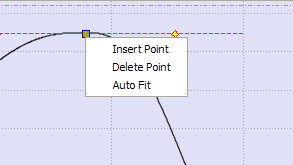
Figure 10-13: Cam Profile Graph - Contextual Menu
|
Command |
Description |
|
Insert Point |
Inserts a new point at the X-Y location of the cursor |
|
Delete Point |
Deletes the highlighted point If the mouse is not near enough to a point, no point is highlighted and this command remains grayed-out |
|
Auto Fit |
Adjusts the zoom and pan settings so that the entire graph is displayed in the graphical area |
In the cam profile graph, you can zoom in or out as follows:
The current cursor becomes the center point of the zoom function and the area under the cursor remains stationary on the graph.
In the cam profile graph, you can also pan (or move) in any direction as follows:
To restore the zoom and pan settings, so the entire curve is displayed in the graphical area, click on the Auto Fit button  or select the Auto Fit command in the cam profile graph menu.
|
Stay Connected with Kollmorgen       
|
Copyright © 2015 Kollmorgen™ |

|